One cool way of hiding the management UI for Nginx Reverse Proxy is by creating a subdomain and using that subdomain to proxy you to the management UI port.
Why do this? Simple, this has the benefit of bots not being able to find or connect to the page unless they have the correct subdomain which, assuming you have your DNS and SSL certs setup properly (creating a cert for “secret.admin.dev.example.com” leaks the domain you probably use for your secret admin developer dashboard because certs are searchable so use a wildcard cert instead like “*.dev.example.com”) , should prevent brute-forcing or prevent someone from randomly stumbling across the login portal. Plus you do not have to type :81 at the end of your URL anymore! Of course this doesn’t mean you can have a bad password and call it secure but I’ll assume you know this already.
This is pretty easy to setup too, simply create a subdomain on your DNS say e.g. “secretlogin.example.com” and point it to your proxy. Now in Nginx Proxy Manager just point the new subdomain to 127.0.0.1 at port 81.
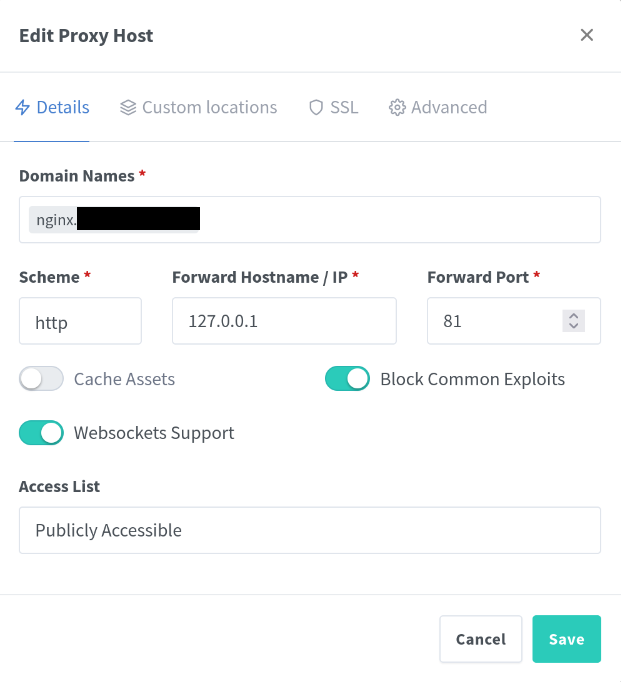
You should be able to now go to that subdomain you just setup and see the login page.
Perfect now you have to make sure you are no longer exposing port 81 (the Nginx management port) to the internet or it defeats the whole purpose of this by going around the proxy we just created. I have mine setup in docker so I’ll show you the setup for that.
ports:
      # <host-port>:<container-port>
      - '80:80' # Public HTTP Port
      - '443:443' # Public HTTPS Port
      - '127.0.0.1:81:81' # Admin Web Port
You can see that when we expose port 81 we only do so locally on the machine (using docker you could also just leave out port 81 completely and it’ll work just fine).
Now to check to make sure everything is working the way we want. You can run “netstat -an | more” on your server and make sure port your server is listing on port 81 from localhost under the Local Address section. It should look like “127.0.0.1:81”, If you see 0.0.0.0:81 then it is still public.
You can also check by just going to your regular domain with the port tacked on, probably as you were doing before e.g. “https://example.com:81” if it doesn’t work then you are good to go!
That’s all, enjoy!